

A custom
magicpatterns.app URL needs a paid plan. Upgrade
here.my-portfolio, the site is live at project-my-portfolio.magicpatterns.app.
Publish
1
Select your prototype in the left window pane.
Click the three dots and select publish.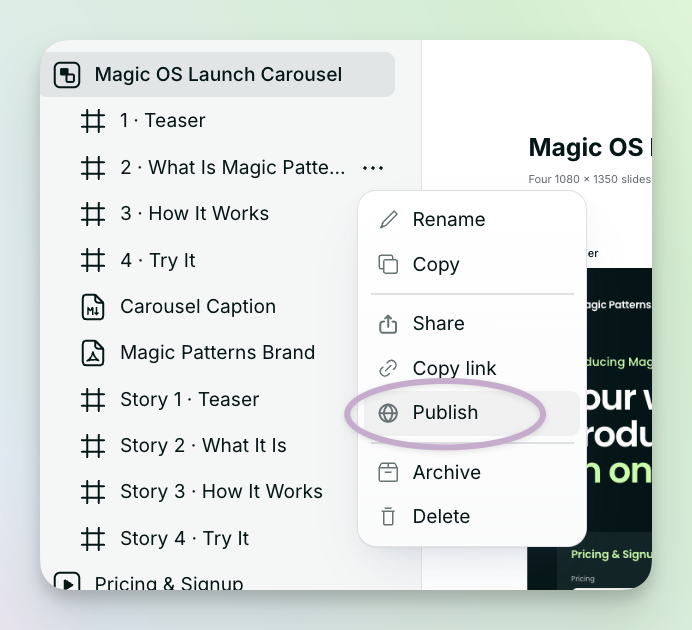
2
Choose where to publish
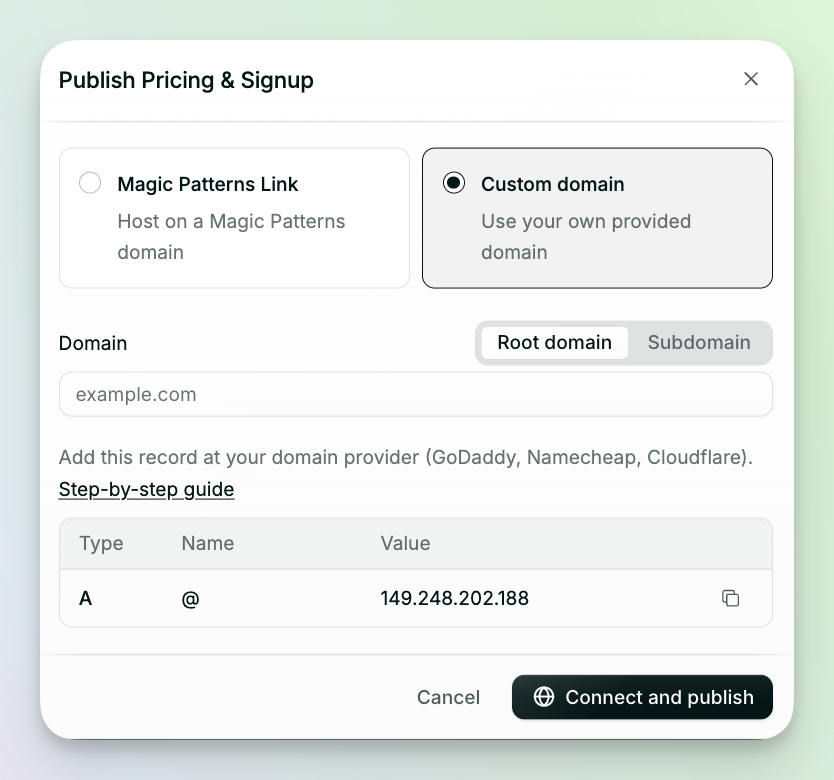
Choose Magic Patterns Link or Custom domain.Magic Patterns Link: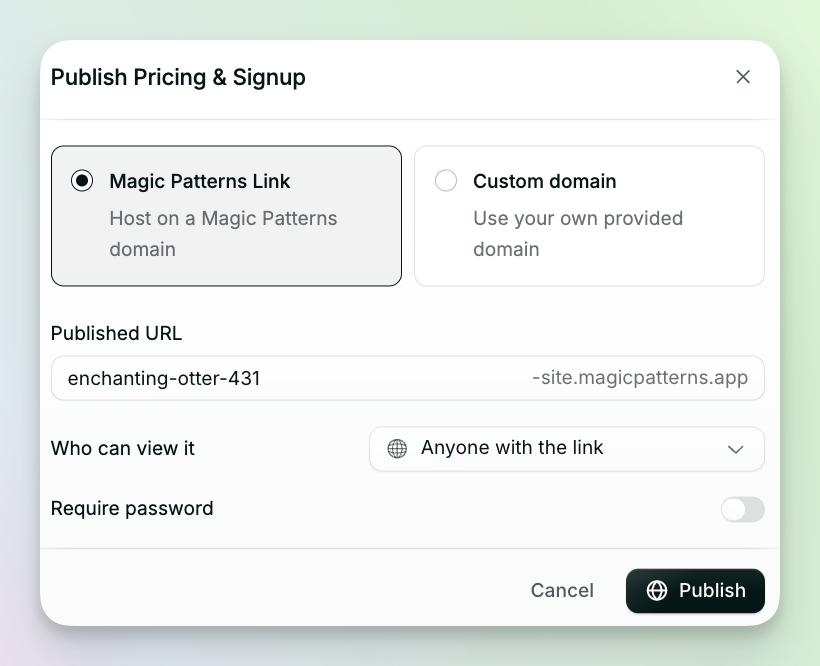 Custom domain:
- Under Published URL, type a name for your link, or keep the one we suggest.
- Under Who can view it, choose who can open your design.
- To add a password, turn on Require password.
Custom domain:- Choose Root domain (like
example.com) or Subdomain (likedesign.example.com). - Type your domain.
- Copy the record shown, and add it where you bought your domain, like GoDaddy, Namecheap, or Cloudflare. Click Step-by-step guide for help.
3
Publish
Click Publish, or Connect and publish if you’re using a custom domain. Your design goes live straight away.
After you publish
A window opens with your live link. Click Copy again to copy it, or Open to view your site.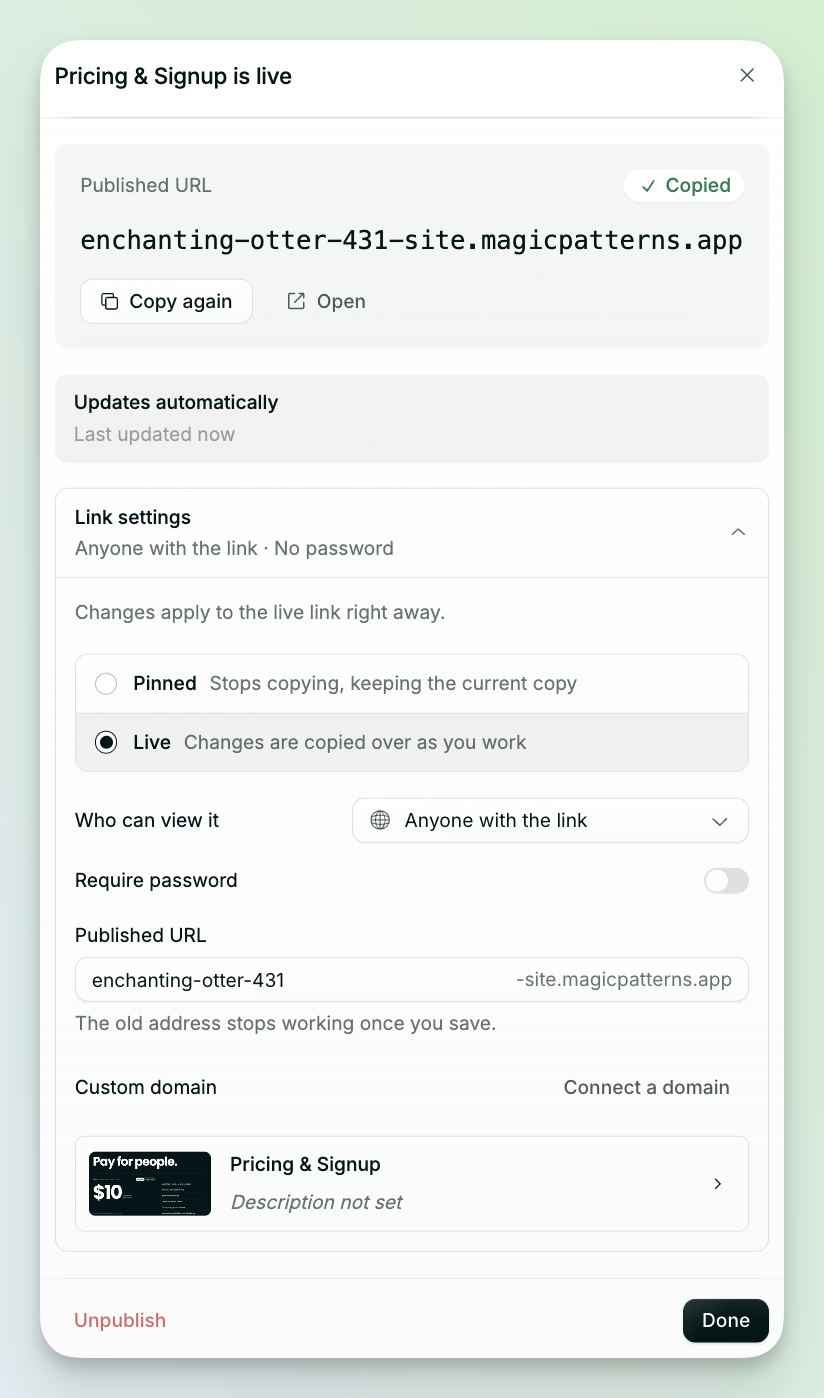 Open Link settings to change your site at any time. Changes apply straight away.
- Live or Pinned: choose Live to update your site as you work, or Pinned to keep it as it is now.
- Who can view it: choose who can open your site.
- Require password: turn this on to ask visitors for a password.
- Published URL: change your link. Your old link stops working once you save.
- Custom domain: click Connect a domain to use your own domain.
- Title and preview: click the card at the bottom to set how your site appears in browser tabs and link previews.
Next
- Connect a custom domain when you want an address you own, not a
magicpatterns.appaddress.