

Connect a repo
1
Open the GitHub option.
When you open a new project, choose Connect a GitHub repo.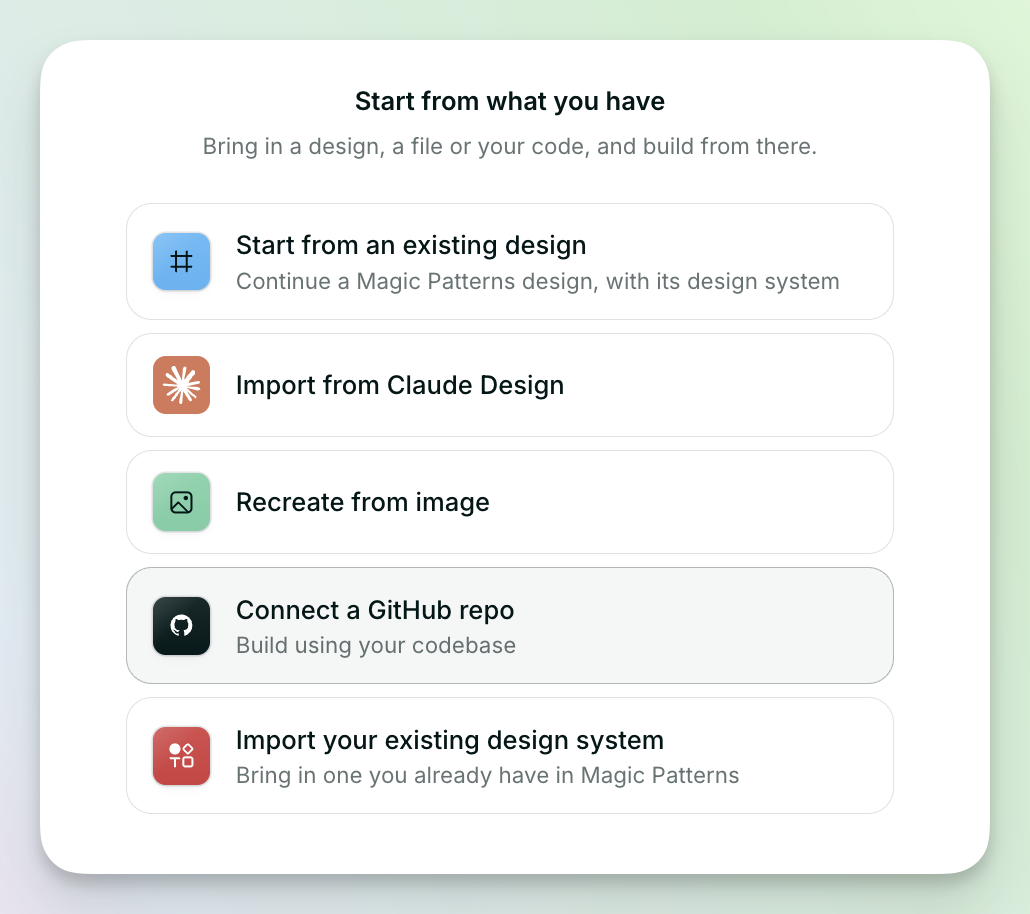
2
Connect your GitHub account.
The first time you do this, click Connect GitHub. You only need to do this once.
3
Authorize Magic Patterns.
A GitHub window opens. Click Authorize.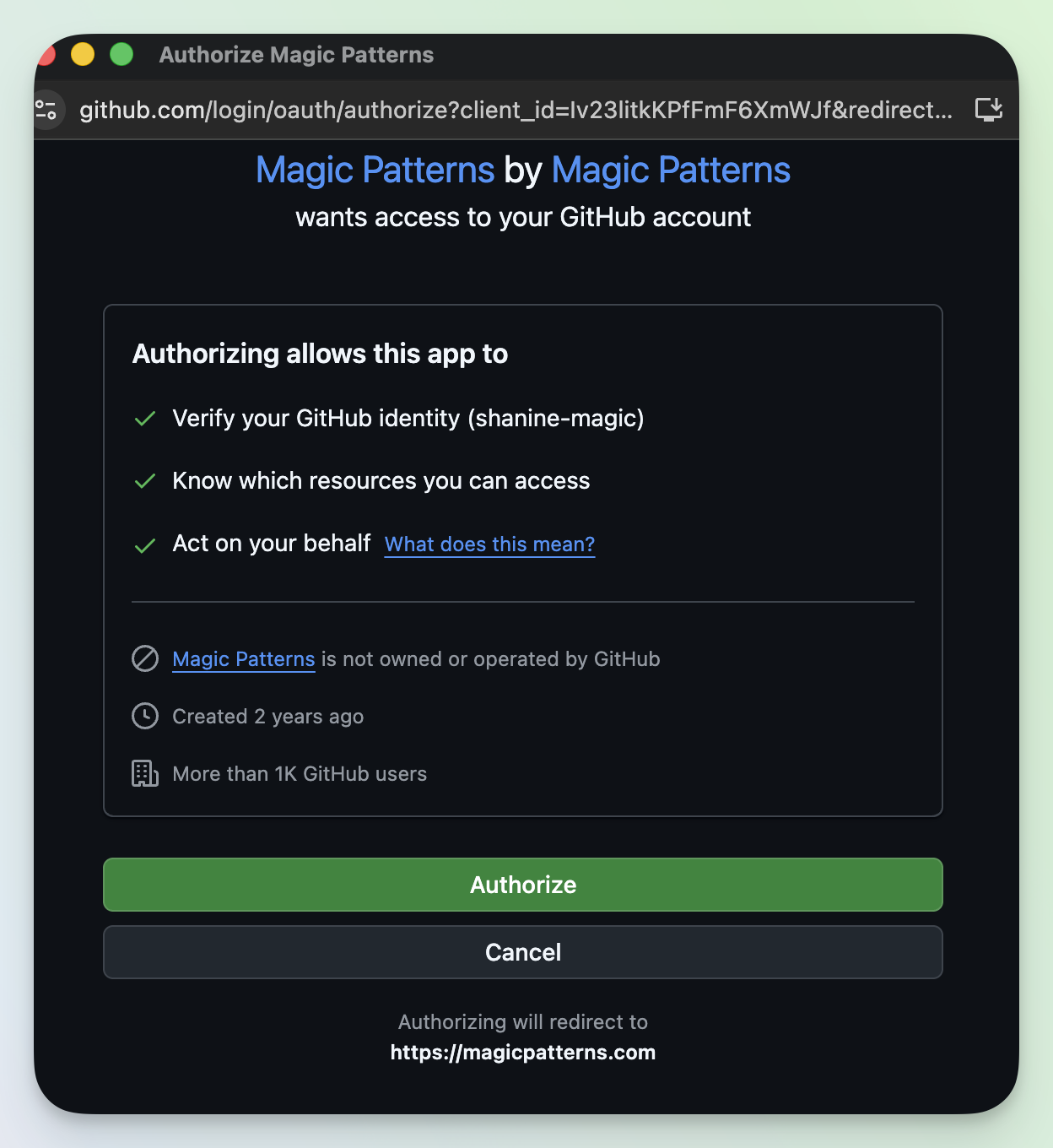
4
Find your repo.
Search for it by name, or paste its URL, like 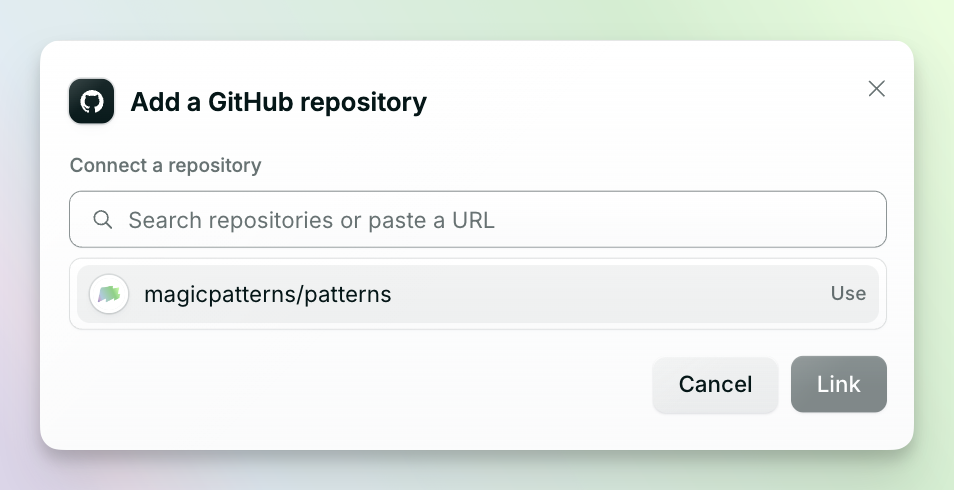
https://github.com/your-org/your-repo. By default (after authorizing), your repo should appear.5
Choose a branch.
The main branch is selected by default. To use a different one, pick it from the Branch menu.
6
Choose folders (optional).
Select only the folders or files the agent needs, like your components folder or style guide. For large repos, this keeps the agent focused.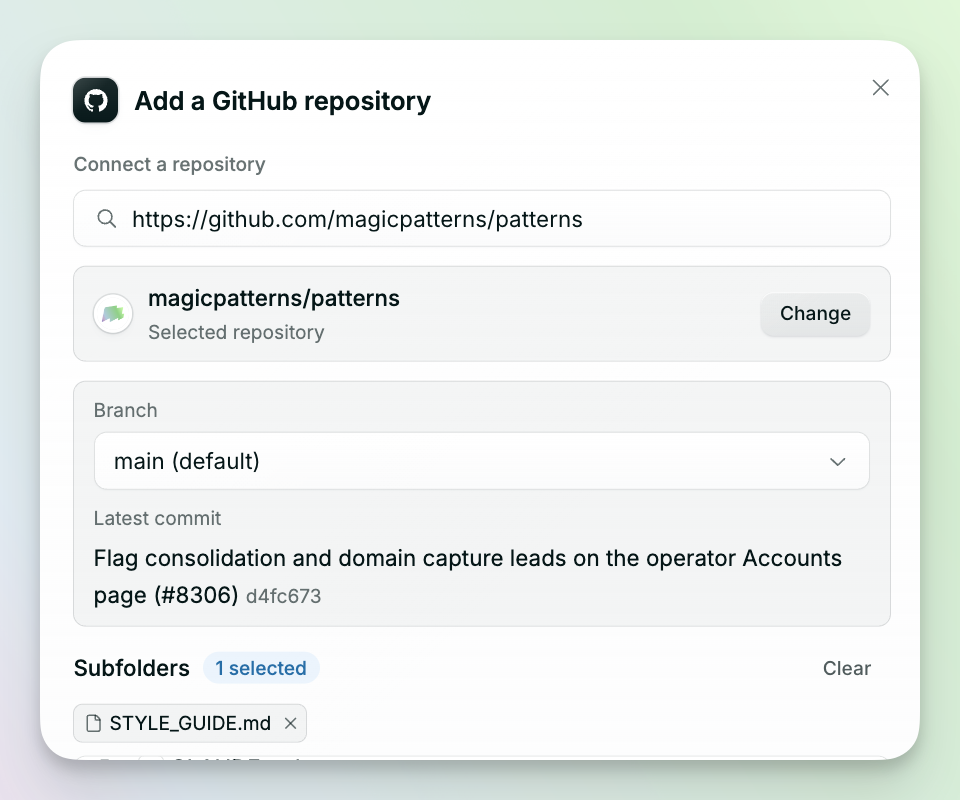
7
Click Link.