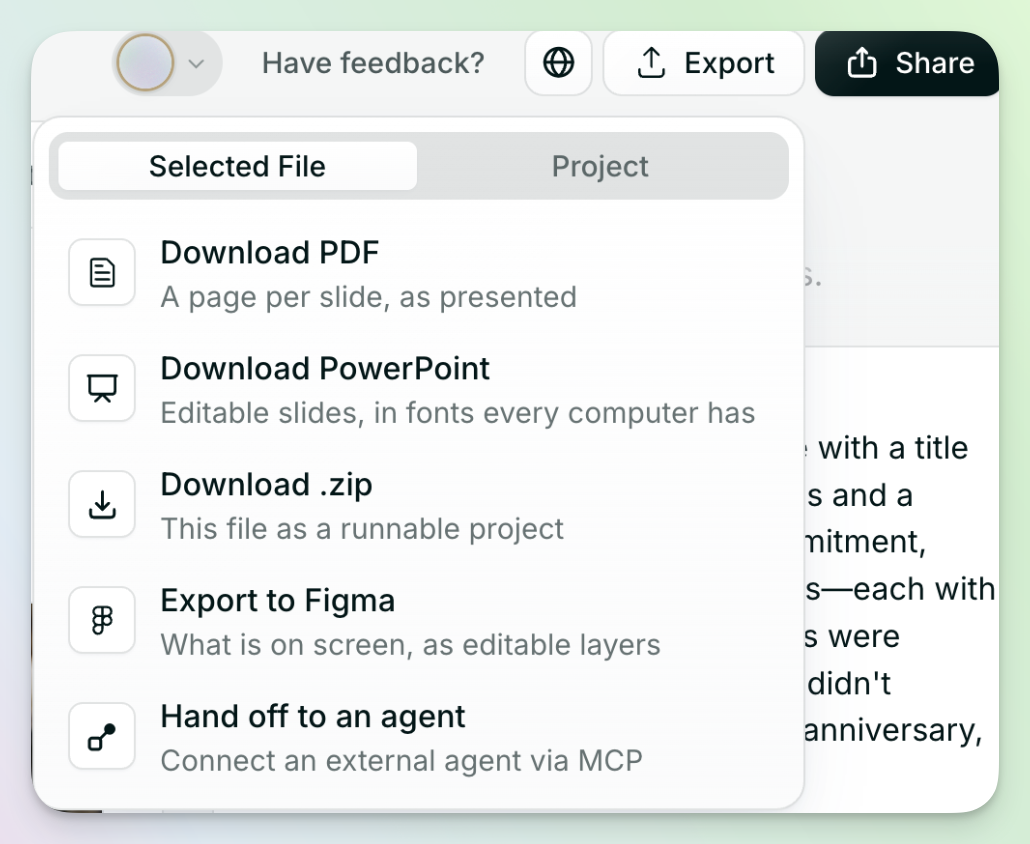
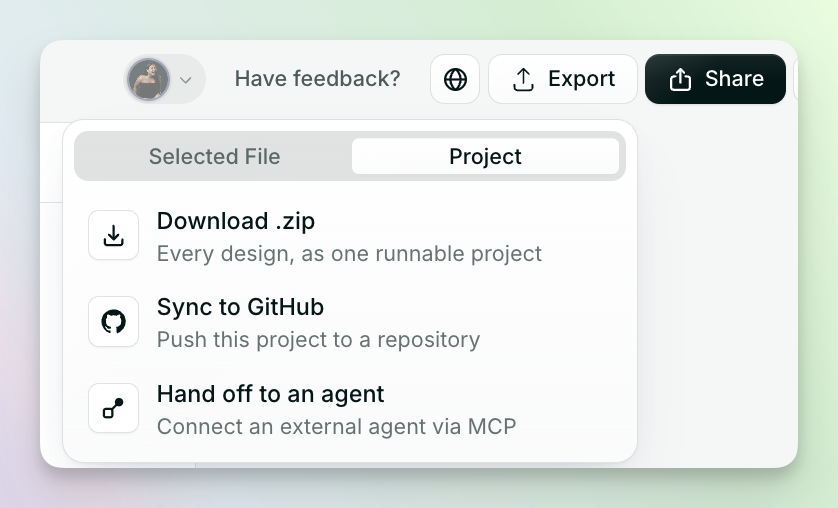
- Selected File: export just the file you have open.
- Project: export everything in your MagicOS.
Which option should I use?
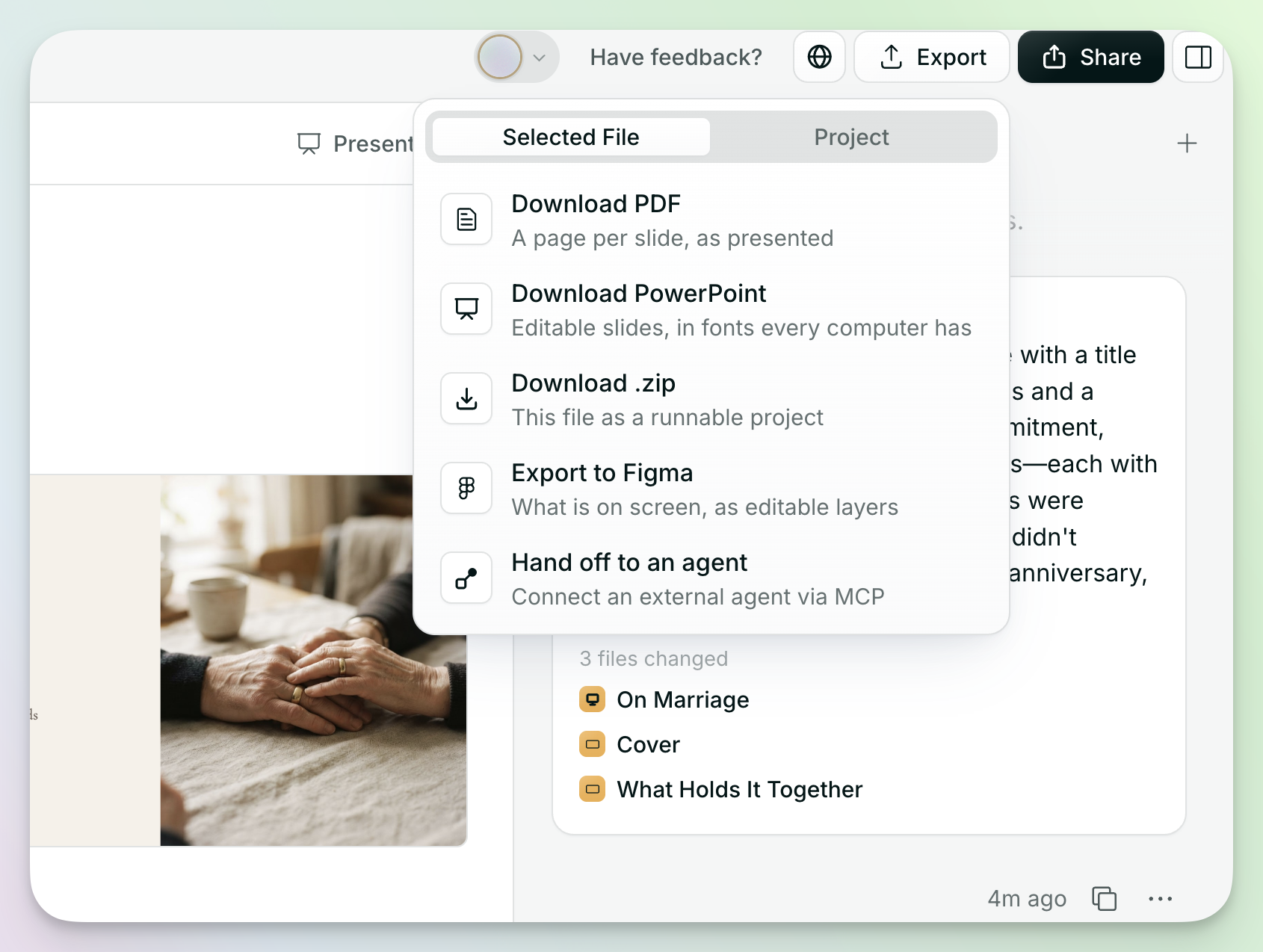
The options in the Selected File tab depend on the kind of file you have open.
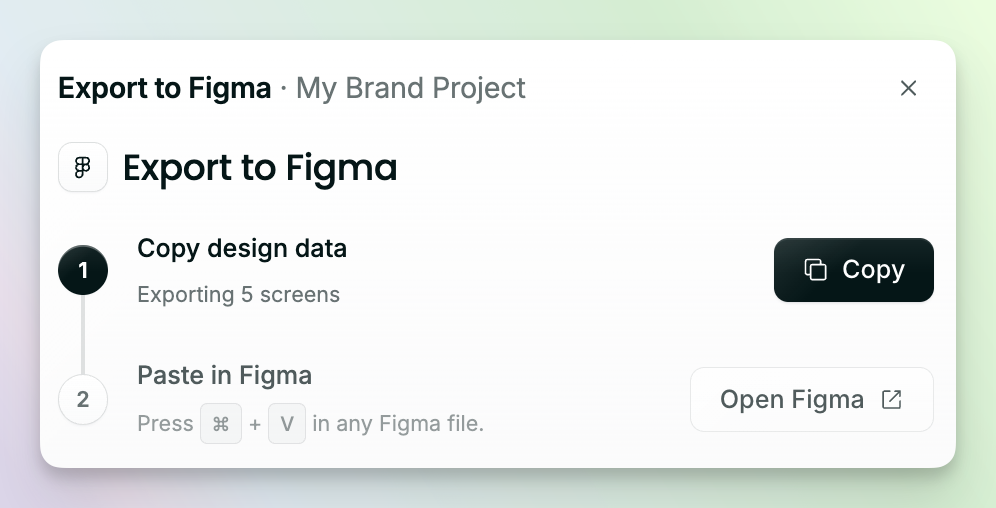
Export to Figma
1
Open the file you want to export, then click Export, then Export to Figma.
2
Click Copy.
3
Click Open Figma, or open any Figma file, and press Cmd + V (Mac) or Ctrl + V (Windows) to paste.
Hand off to an agent
Connect a coding agent, like Cursor, Claude Code, or Codex, so it can build from your design. Click Export, then Hand off to an agent. You can do this from either tab: Selected File hands off the file you have open, and Project hands off your whole project.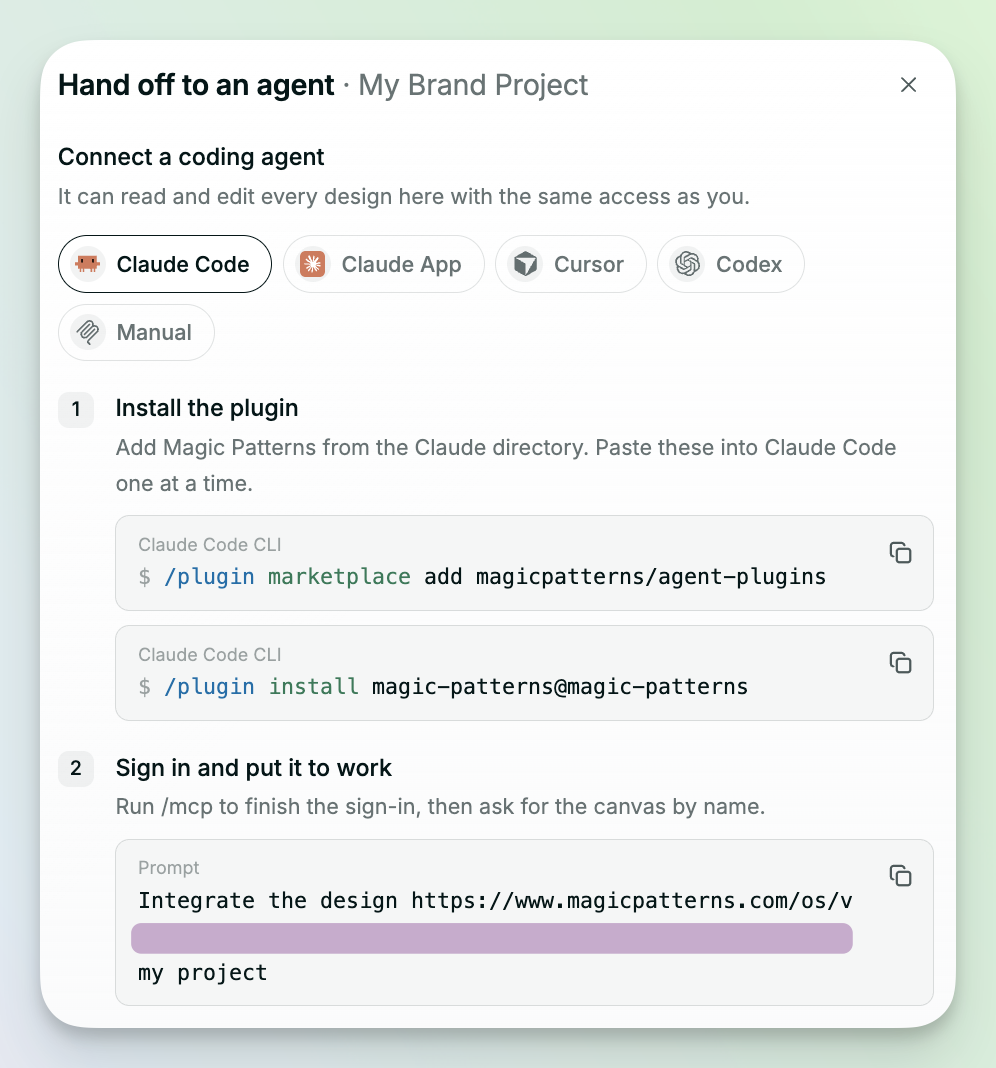 To help your agent rebuild the design with your own components, see Adapt a prototype to your codebase.
Download a slide deck
If you’ve made a slide deck, open it, click Export, and choose:- Download PDF: one page per slide, as it looks when you present.
- Download PowerPoint: slides you can edit in PowerPoint.
Download .zip
Click Export, then choose Download .zip from either tab:- Selected File: downloads the file you have open as a runnable project.
- Project: downloads every design in your project as one runnable project.
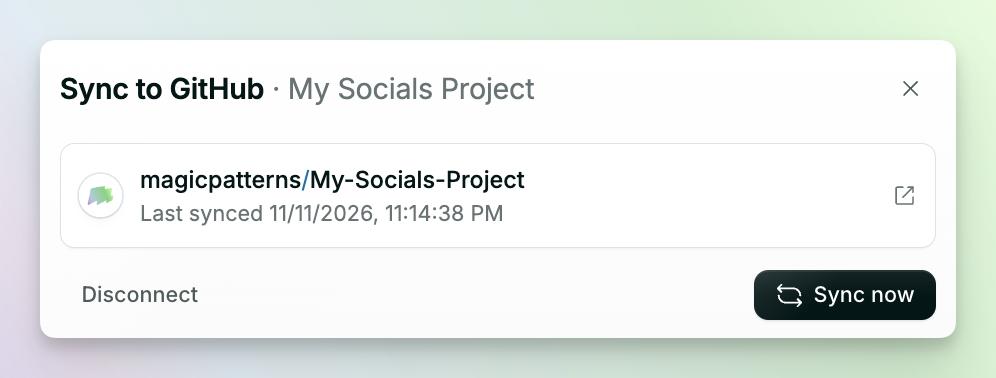
Sync to GitHub
Click Export, then Project, then Sync to GitHub. Choose where to create the new repo, give it a name, and Magic Patterns will push your project to it.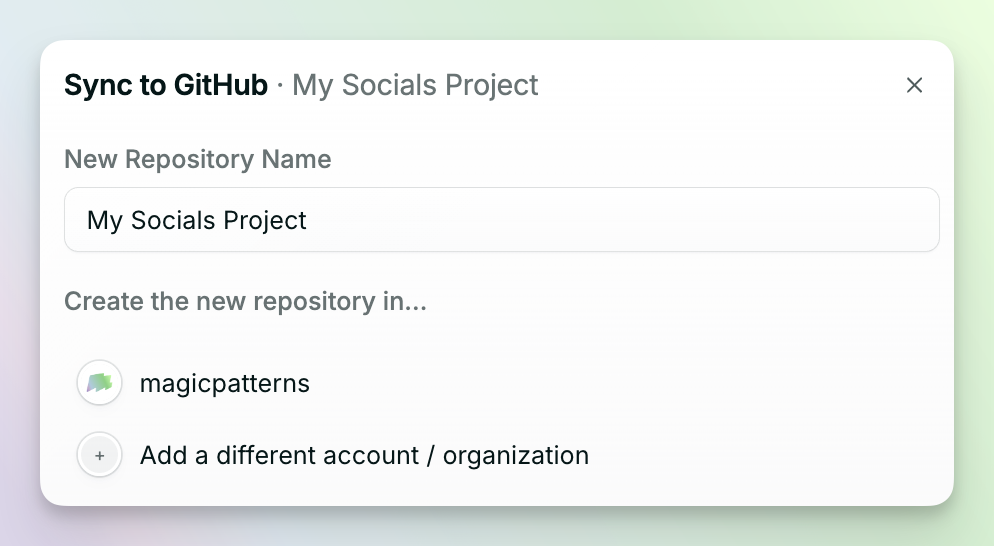 Once your repo is created, the window shows your linked repo and when it was last synced.
- Sync now: push your latest changes to the repo.
- Open in GitHub: click the arrow icon next to the repo to open it.
- Disconnect: unlink the repo from your project.