

1
Create a Magic OS
Go to your dashboard and click + New Project. Your new MagicOS opens, and you can choose how to start: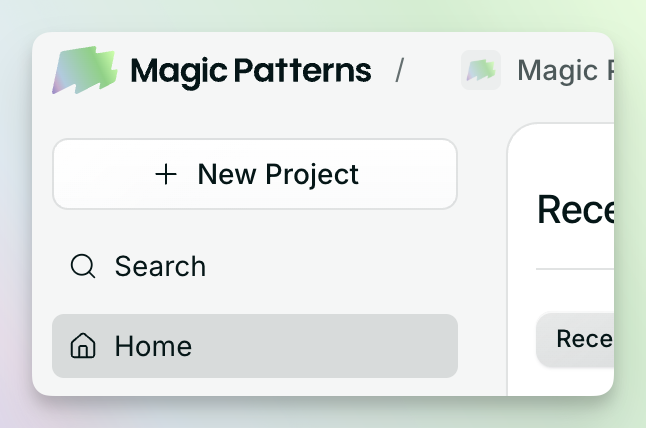
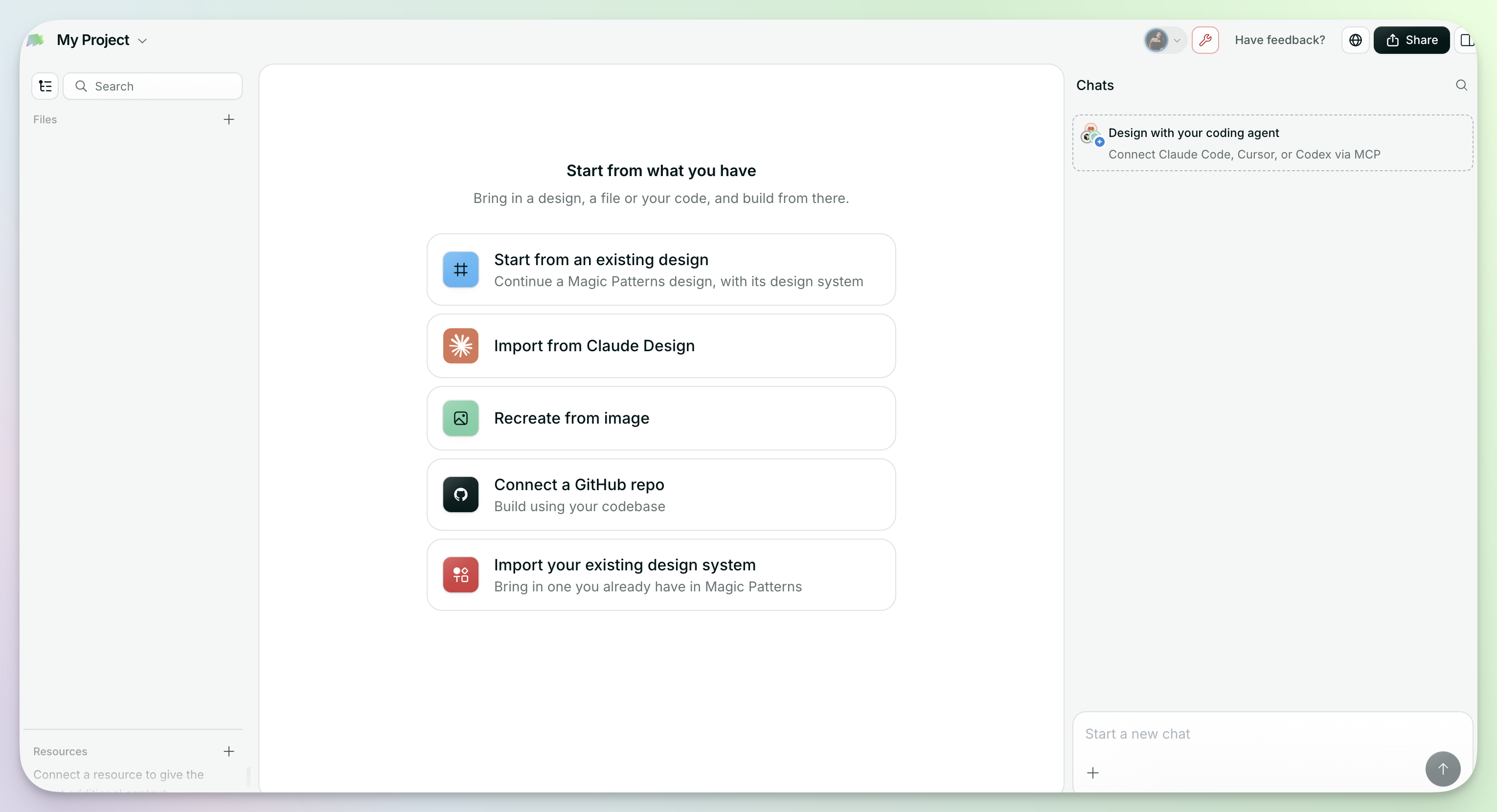
- Start from an existing design: continue a Magic Patterns design, along with its design system.
- Import from Claude Design: bring in a project you made in Claude Design.
- Recreate from image: upload a screenshot and turn it into a design.
- Connect a GitHub repo: build from your codebase.
- Import your existing design system: use one you already have in Magic Patterns.
2
Prompt your first prototype
Start fresh by describing what you want to build. Or start from something you already have: use the Insert button + to add a design, document, image, or GitHub repo to the canvas, then type @ to mention it in your prompt.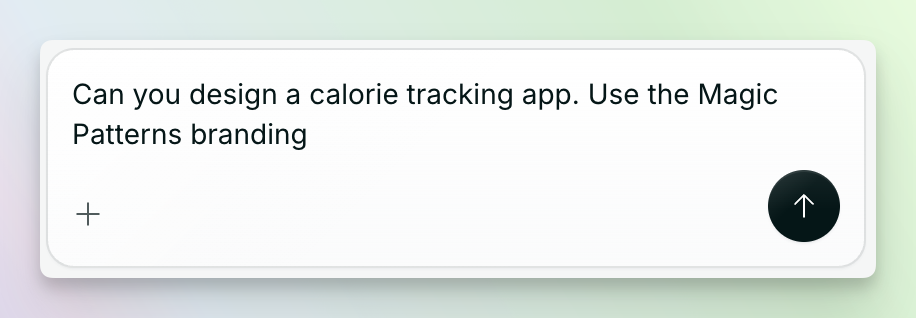
3
Open the design
Double-click it to open it up and click around.
4
Ask for a change
Tell the coordinator what you want the way you’d brief a teammate. For example: “Figure out a better layout for the home screen” or “Create a dark mode version with the same colours.”
5
Watch the work
The coordinator starts a thread and hands the job to an agent. Follow along in that thread or from the sidebar. New files show up on the canvas as they’re built, and you can keep chatting with the coordinator in the meantime.
Next steps
The canvas and files
Add canvases, prototypes, frames, documents, images, and resources.
Prototypes and frames
Open a prototype or a frame to interact, inspect, or edit.
Agents and threads
Run several pieces of work at once and know when you’re needed.