

Who can comment
Anyone who can view a MagicOS can comment on it. They don’t need edit access. To get feedback, click Share and invite your team. See Sharing a design.Add a comment
1
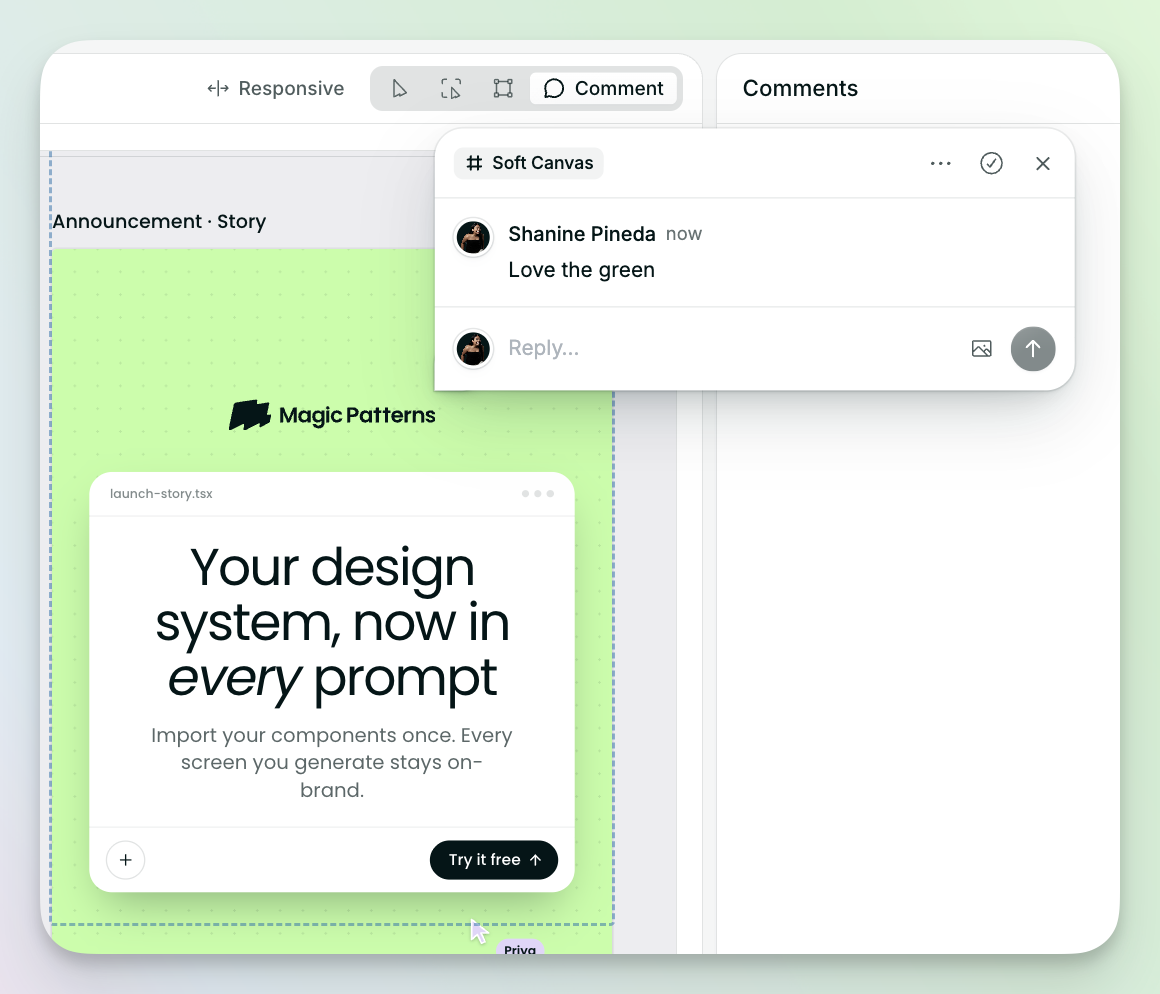
Turn on comment mode.
2
Click the spot you want to comment on.
3
Type your comment and post it.

Mention someone
Type @ and their name to mention someone in a comment. They’ll get an email letting them know.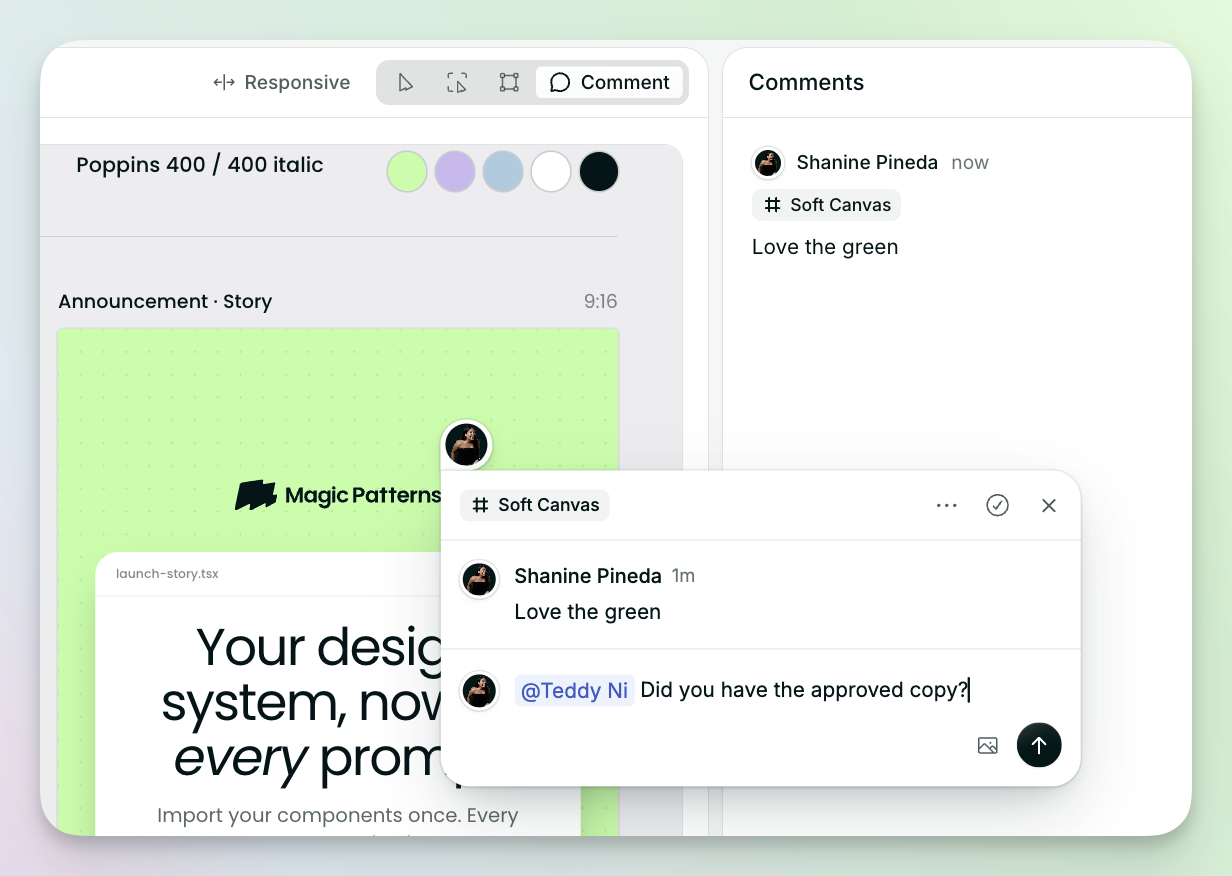 If they don’t have access to the MagicOS yet, you’ll be asked to share it with them first.
Reply and resolve
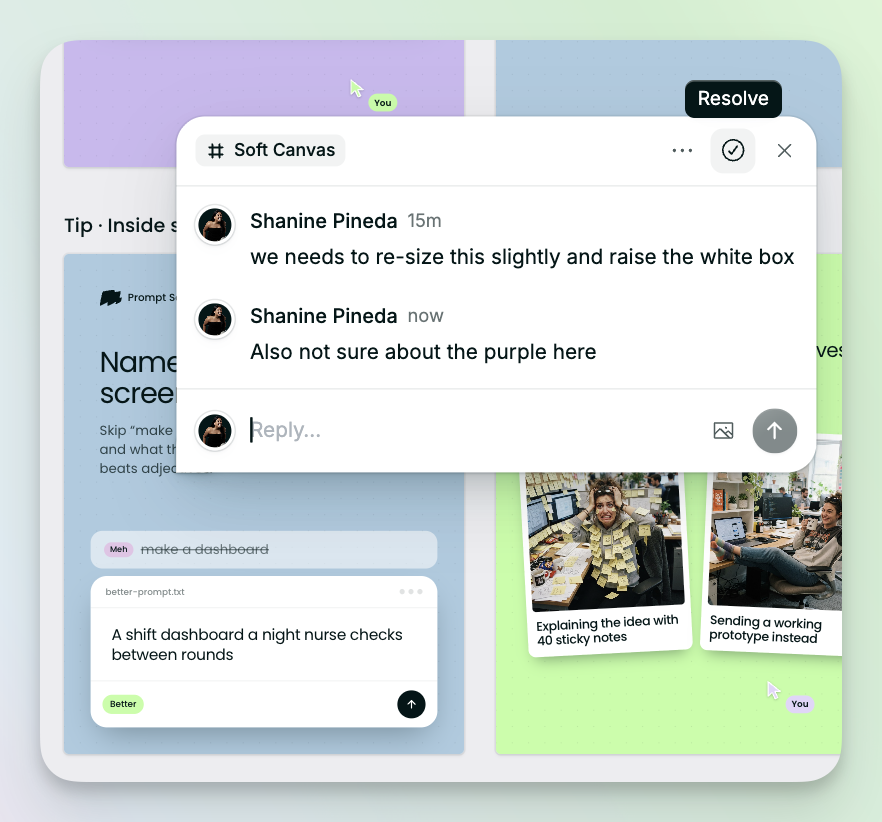
- Reply: click a comment to reply and keep the conversation in one thread.
- Resolve: when the feedback has been dealt with, resolve the thread to clear it away.
- Unread: threads with new comments you haven’t seen are marked as unread.
Share a comment
Copy a link to a comment to send someone straight to it.Ways teams use comments
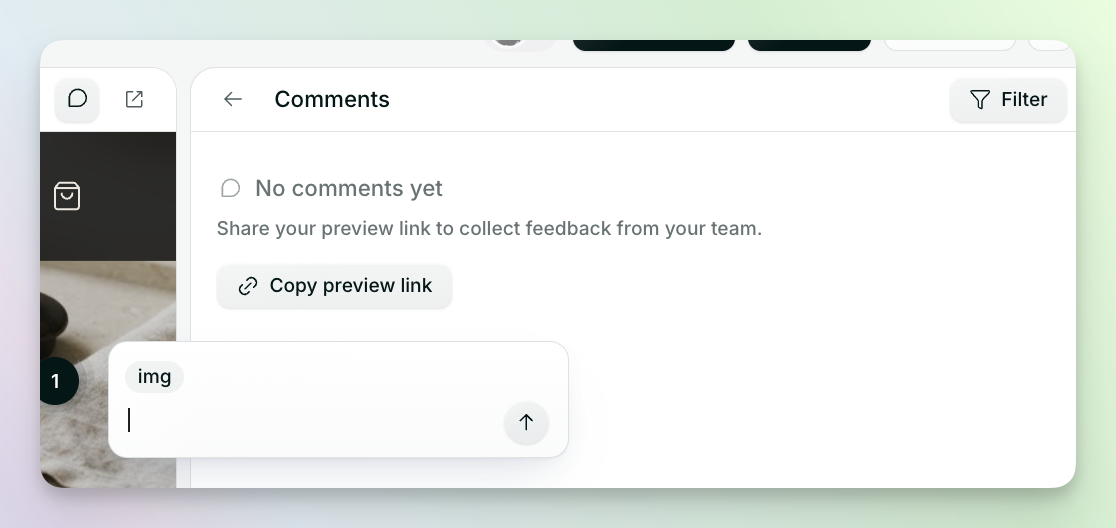
- Design reviews: share your MagicOS and ask people to comment directly on the design, instead of booking a meeting.
- Collecting feedback: product, engineering, and stakeholders can point to exactly what they mean, even without edit access.
- Tracking fixes: use comments as a checklist and resolve each one as you fix it.